
WooCommerce shops can offer Monero two ways: on the hosted multi-coin page, or as an individual coin with a QR code on your own site. Monero (XMR) keeps amounts, senders and receivers private on its blockchain, which is exactly why many customers prefer it. With PayGate.to, each order gets a one-time Monero address and the XMR is forwarded to your own Monero wallet once it unlocks.
Step 1: Get a Monero wallet address
You need a Monero address you control: a main address (4…) or a subaddress (8…), 95 characters. Get one from Feather Wallet on a computer or Cake Wallet on a phone. We confirmed that PayGate.to accepts subaddresses as payout wallets.
Step 2: Install or update the WooCommerce plugin
In WordPress, go to Plugins › Add Plugin, search for Crypto Payment Gateway with Instant Payouts, then Install Now and Activate. Already installed? Update it under Plugins first.
Step 3: Paste your Monero wallet
Open WooCommerce › Settings › Payments.
- Multicoin Crypto Payment Gateway: paste your Monero wallet into Monero Wallet Address (XMR) and save. Customers choose Monero on the hosted page.
- Individual Coin Crypto Payment Gateway: click Manage, find Monero (XMR) in Accepted Coins, tick it and paste the same wallet. Customers pay a QR code on your own site.

Step 4: What your customer sees
The customer chooses Monero, gets the exact amount converted from your order total, a one-time address and a QR code.
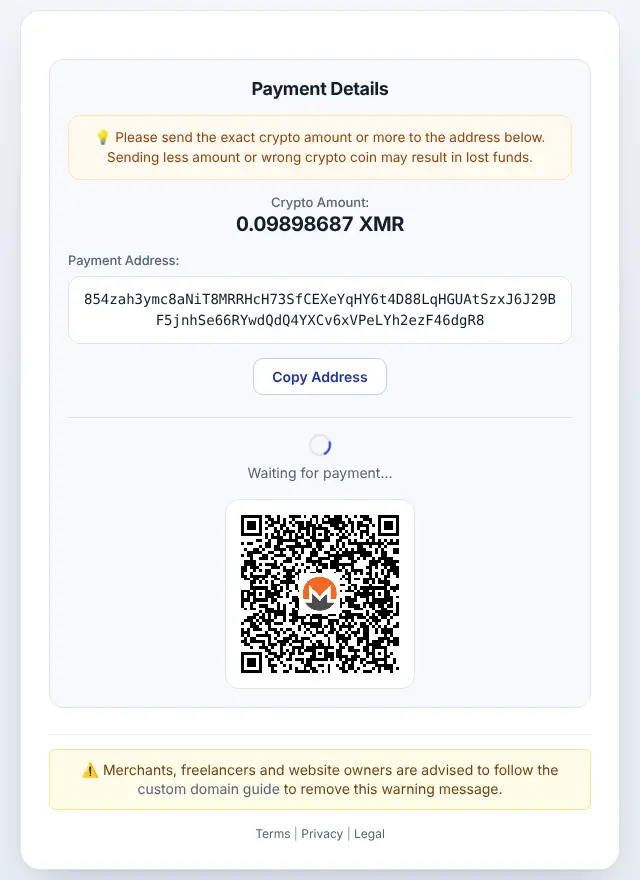
Step 5: Order completed automatically
When the payment is confirmed, the Monero is forwarded to your wallet and the order moves to Processing (or Completed for virtual products). The order notes show the amount and transaction ID.
Monero on WooCommerce: good to know
- Minimum: 0.01 XMR at the time of writing (live minimums).
- Timing: Monero blocks arrive every ~2 minutes and received funds unlock after 10 blocks (~20 minutes) before forwarding.
- Privacy: customers never see your wallet address; outsiders can't link the payment to it on the blockchain.
- If the method doesn't appear at checkout, check that the coin is both ticked and has a wallet (Individual) or that at least one wallet is filled (Multicoin).
- The QR page needs Settings › Permalinks set to anything except "Plain", and WordPress at the domain root.
- Orders that stay Pending usually mean
/wp-json/is blocked or cached. See WooCommerce troubleshooting. - Order statuses: Pending payment → Processing/Completed; Failed if less than required arrived (a note shows the amounts).
Frequently asked questions
Can I use a Monero subaddress?
Yes. Subaddresses (8…) and main addresses (4…) both work as payout wallets.
Why does the order take about 20 minutes to complete?
Monero locks received funds for 10 blocks. The customer has paid; forwarding waits for the unlock, then the order updates automatically.
Do I need an account or API key?
No. The plugin only needs your public wallet addresses. Neither you nor your customers register with PayGate.to.
Which other platforms support Monero?
Easy Digital Downloads · WHMCS · FOSSBilling · Magento · OpenCart · PrestaShop · Paymenter. See Accept Monero (XMR) payments for the overview.