
FOSSBilling clients can pay invoices in XRP with the PayGateCrypto adapter. XRP settles in seconds with tiny fees. PayGate.to supports native XRP on the XRP Ledger: each order gets a one-time XRP address (no tag needed by the customer), and the XRP is forwarded to your own wallet, including your destination tag if your account needs one.
Step 1: Get an XRP wallet address
You need an XRP address you control (r…), from Trust Wallet or OKX Web3 Wallet. If your account needs a tag, write it as r…?dt=TAG or use an X-address. Details: Get an XRP address with a destination tag.
Step 2: Install or update the FOSSBilling plugin
Download the adapter from the FOSSBilling crypto page, upload the PayGateCrypto folder into library/Payment/Adapter/ (XRP needs version 1.0.1 or newer), then System › Payment gateways › New payment gateway and install PayGateCrypto.
Step 3: Paste your XRP wallet
Open System › Payment gateways › PayGateCrypto.
- Network wallets: paste your XRP wallet into XRP Ledger wallet, switch on Enabled and Allow One Time Payments, and click Update Gateway.

Step 4: What your customer sees
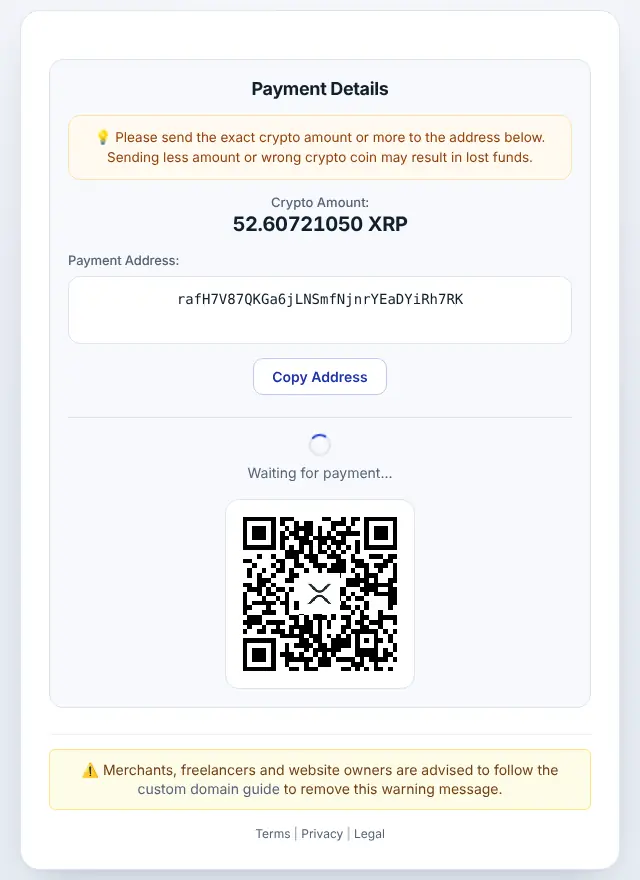
The customer chooses XRP, gets the exact amount converted from your order total, a one-time address and a QR code.
Step 5: Order completed automatically
When the payment is confirmed, the XRP is forwarded to your wallet and the invoice is marked Paid. The adapter checks the signature, the coin, the amount and that the payout went to your wallet before paying the invoice.
XRP on FOSSBilling: good to know
- Minimum: 2 XRP at the time of writing (live minimums). A new address needs 1 XRP reserve; the first payout covers it.
- Timing: XRP Ledger payments are final in a few seconds.
- Callbacks:
address_outlists your payout asr…?dt=TAG, even if you entered an X-address. - Confirmations go to
ipn.php: FOSSBilling must be reachable at its public https address. - Repeated confirmations are ignored, so a replayed callback can't pay an invoice twice.
- Order statuses: Unpaid → Paid.
Frequently asked questions
Do customers need to enter a destination tag?
No. They pay a one-time address without a tag. Only your payout wallet may have one.
Can I paste an X-address into the field?
Yes. The plugin accepts r…, r…?dt=TAG and mainnet X-addresses.
Do I need an account or API key?
No. The plugin only needs your public wallet addresses. Neither you nor your customers register with PayGate.to.
Which other platforms support XRP?
WooCommerce · Easy Digital Downloads · WHMCS · Magento · OpenCart · PrestaShop · Paymenter. See Accept XRP payments for the overview.