
OKX Web3 Wallet is a self-custodial, multi-network wallet. It's a good choice for networks that other popular wallets don't cover, such as Berachain, alongside XRP Ledger, Zcash and the usual EVM networks. It's separate from any exchange account: you create a seed phrase and you alone hold it.
This guide uses the OKX Web3 Wallet browser extension (version 4.24, November 2026).
Step 1: Install from the official source
Type the official OKX website address yourself and use its Web3 Wallet download link, or open your browser's extension store and check the publisher. Never install from ads or links in messages.
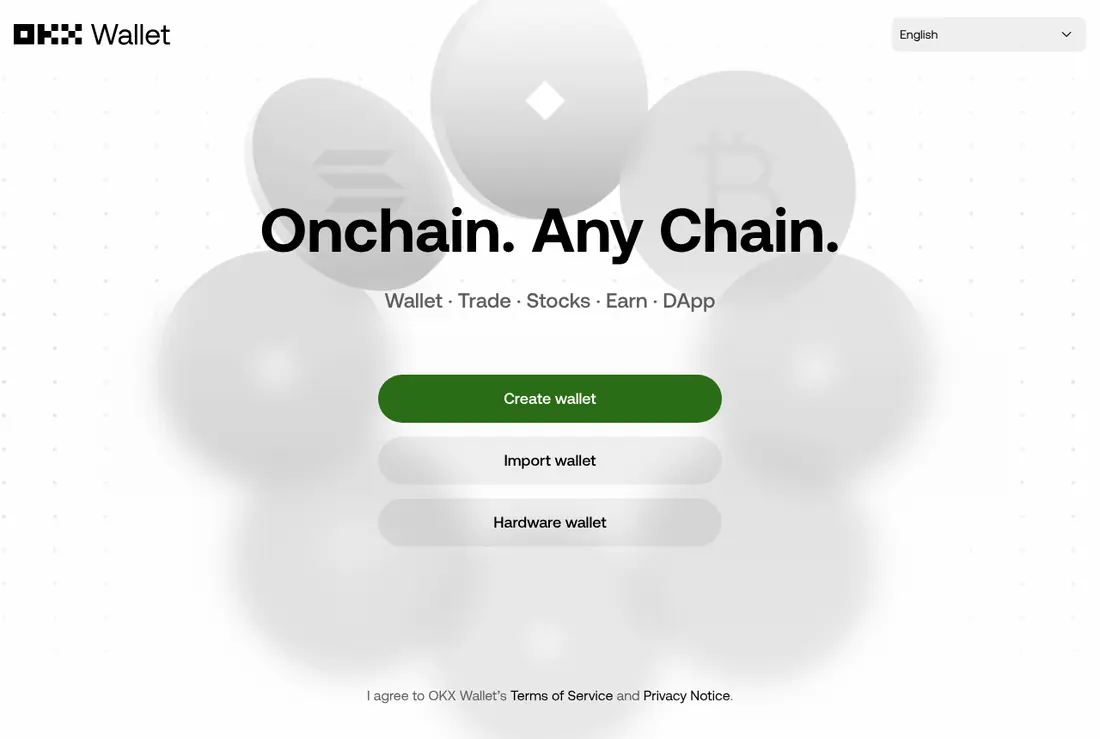
Step 2: Choose a seed phrase wallet
OKX offers sign-in methods and a classic seed phrase. For a payout wallet, choose Create a new seed phrase wallet: it works without any online account and can be restored in other compatible wallets.
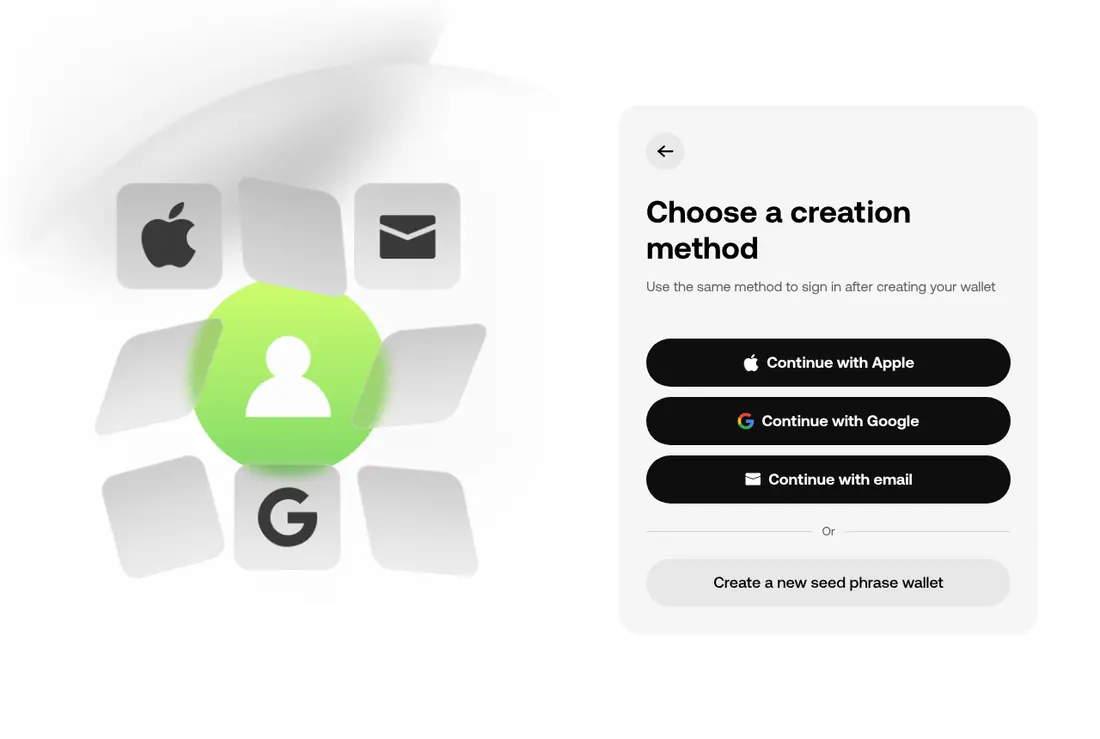
Step 3: Set a password
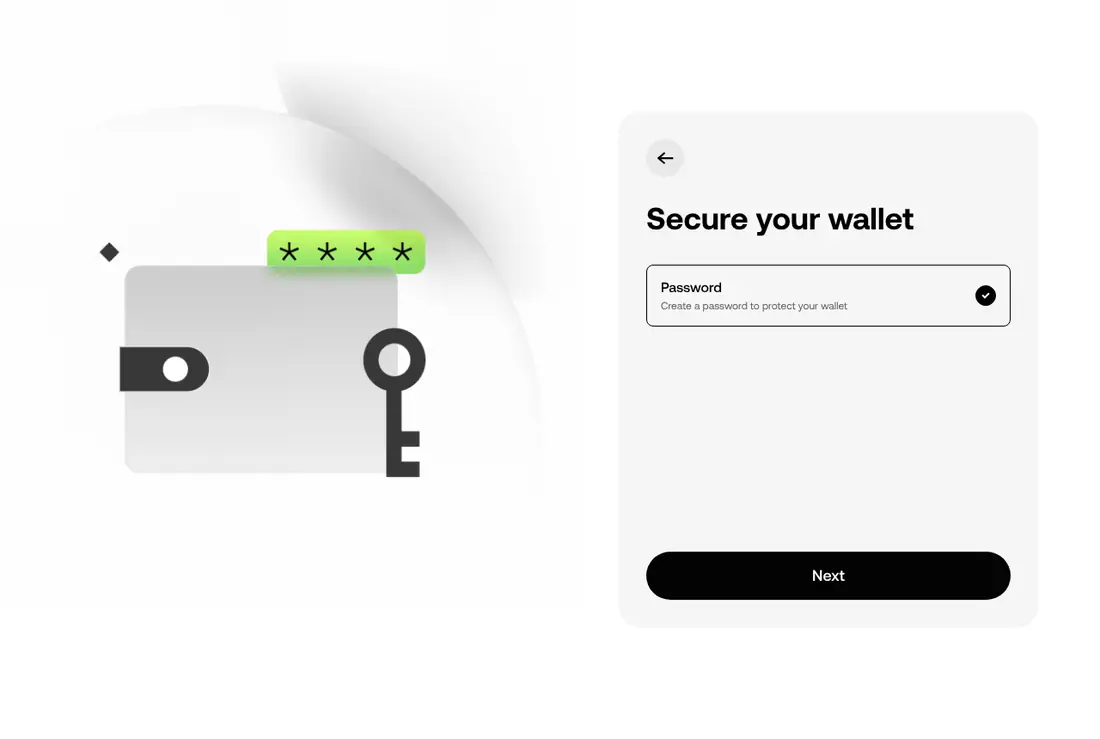
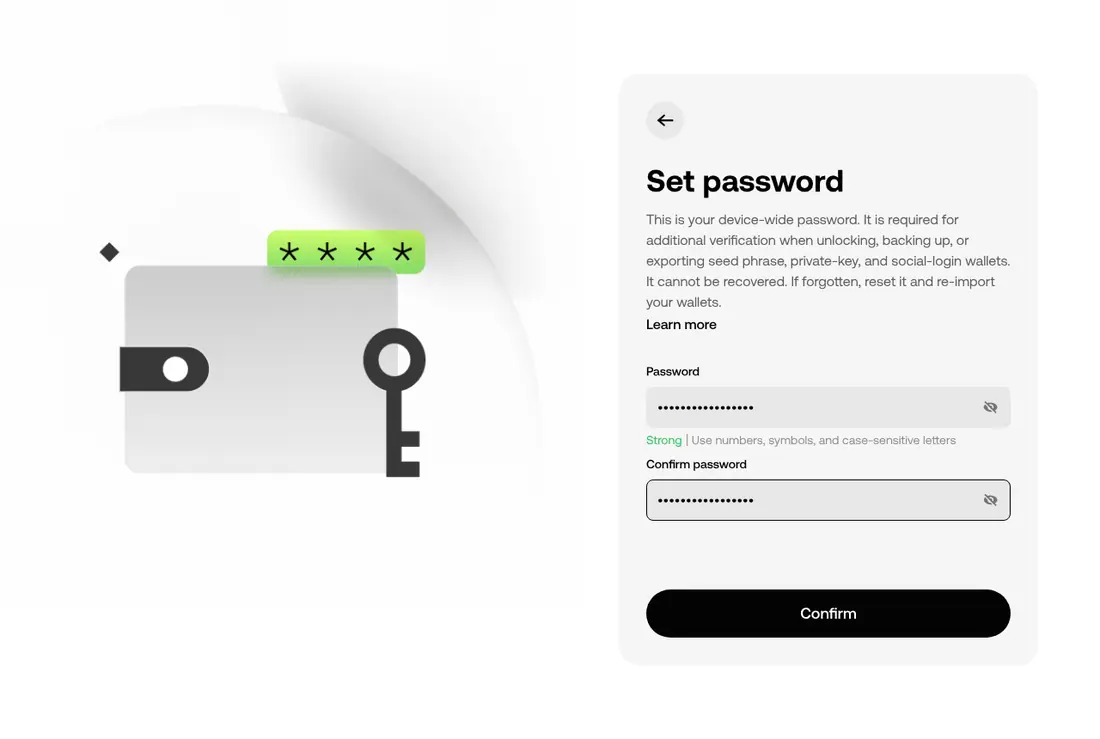
Keep Password selected, click Next, and set a strong password. It protects the wallet on this device and is needed to view the seed phrase later.
Step 4: Write down the seed phrase
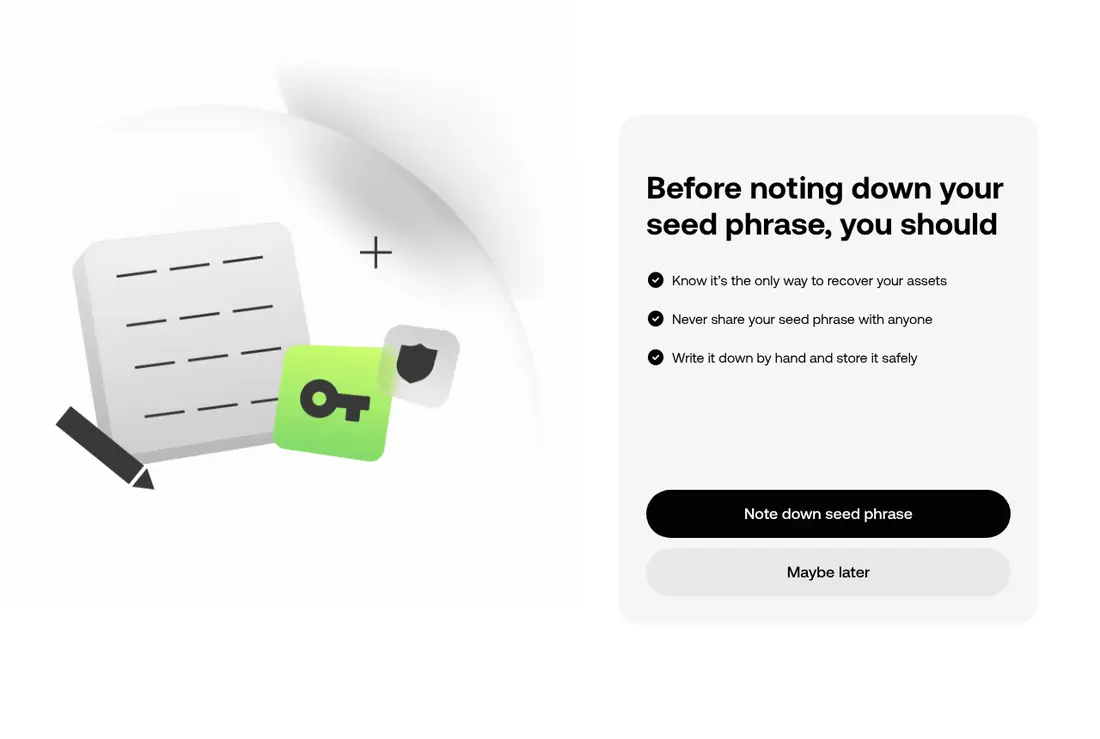
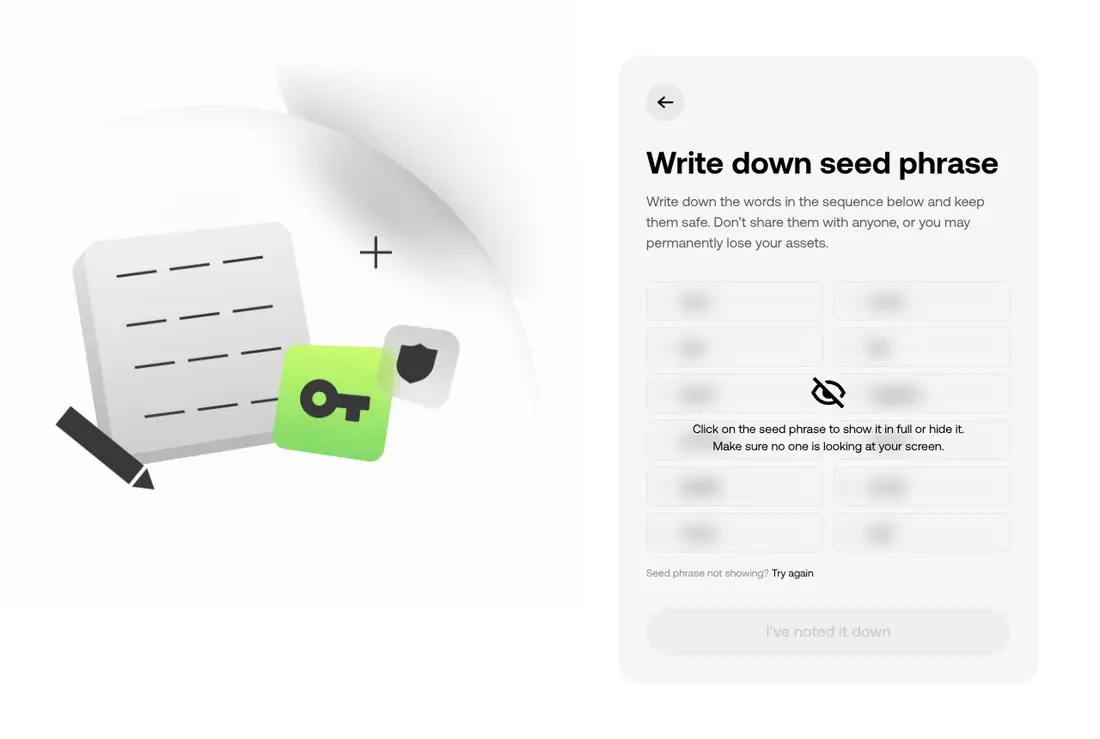
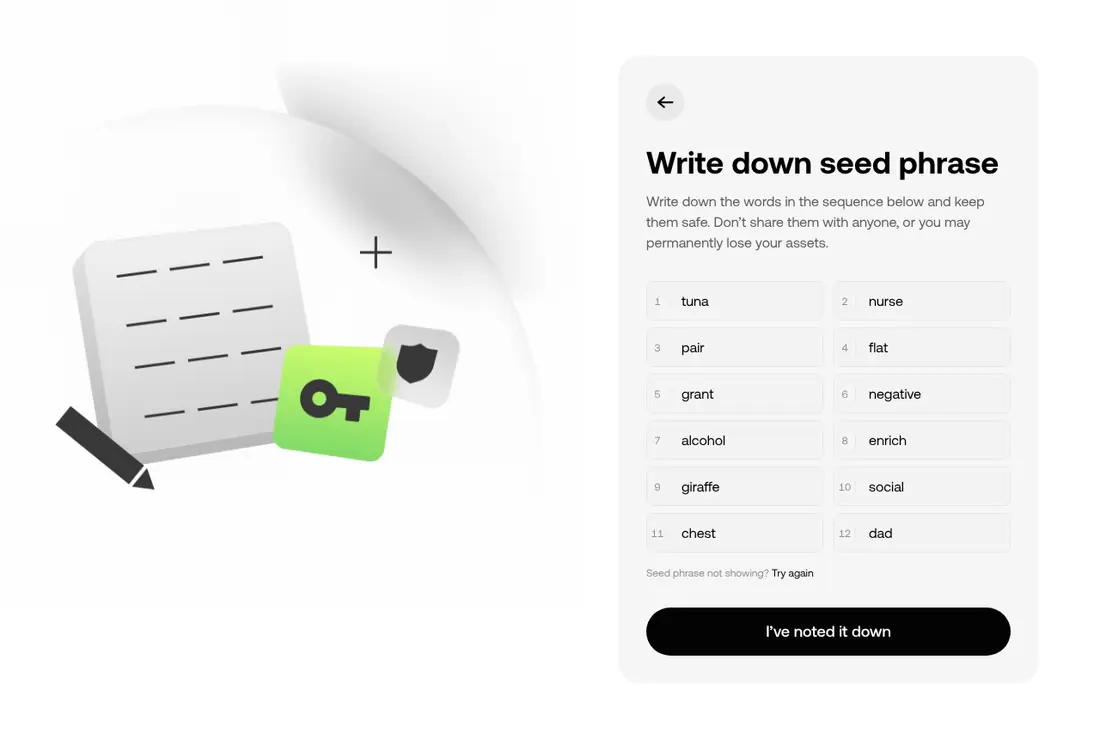
OKX reminds you of the three rules, then shows 12 words behind a blur. Click to reveal them only when nobody can see your screen, and write them on paper in order.
Step 5: Confirm three words
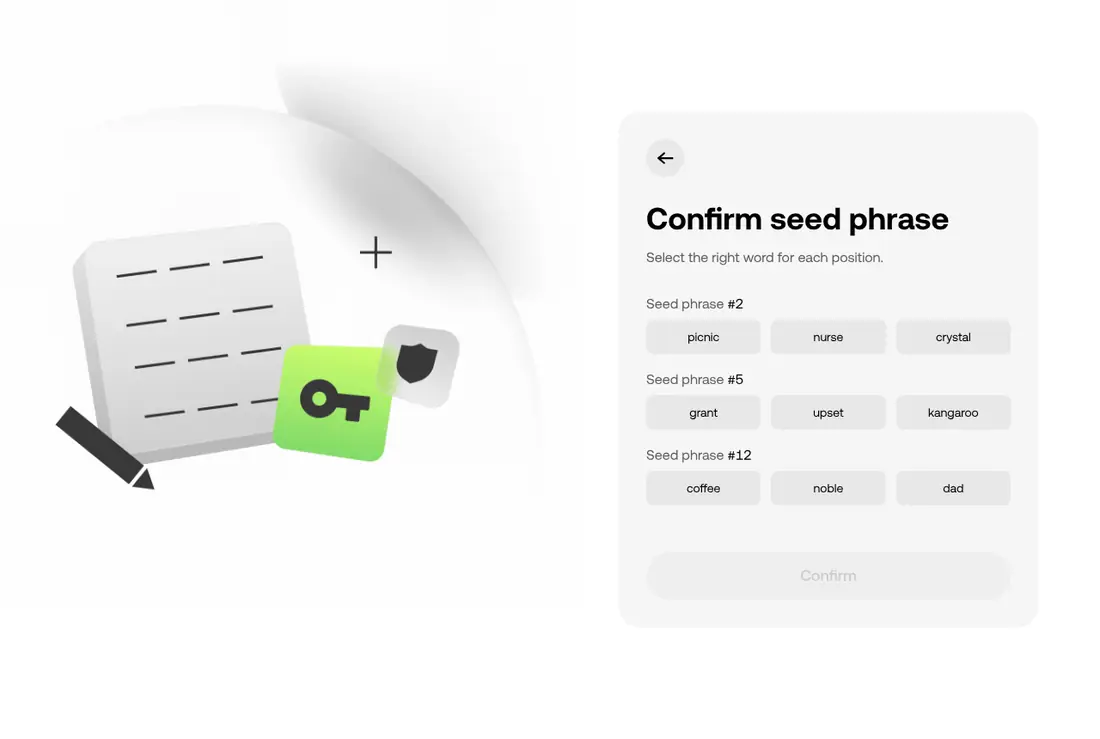
OKX asks for the words at three positions. Pick each from your paper copy and click Confirm.
Step 6: Get the right receiving address
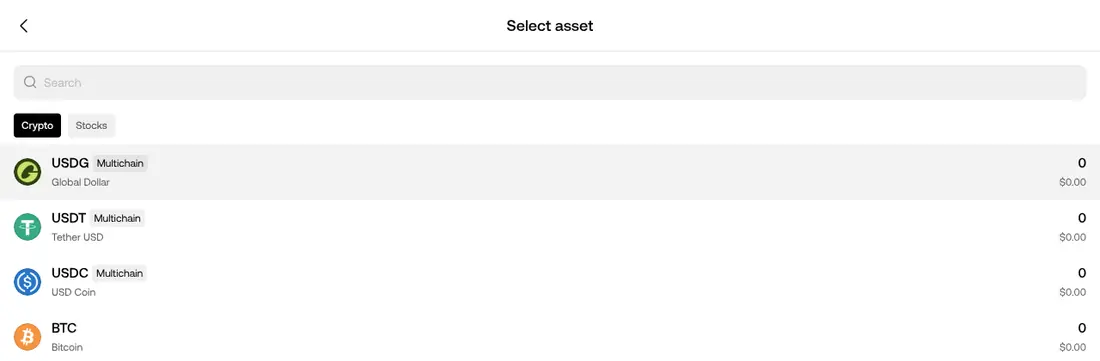
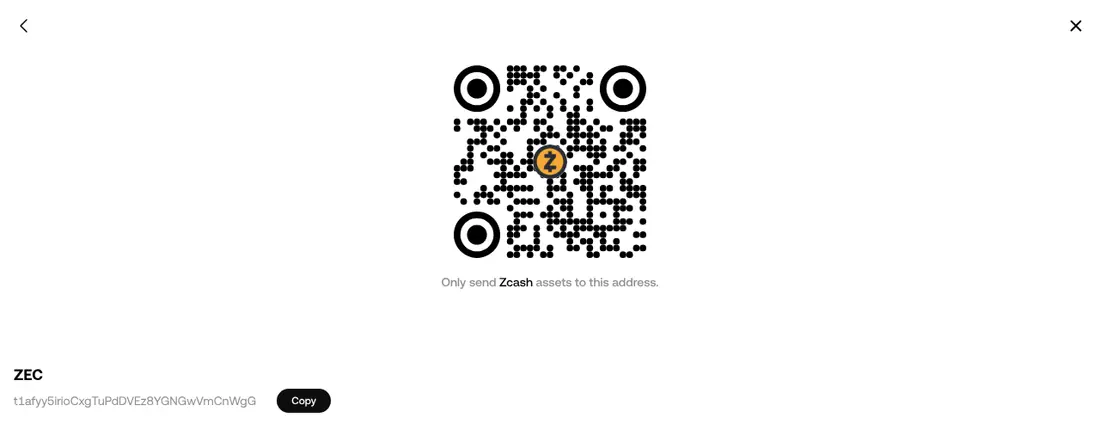
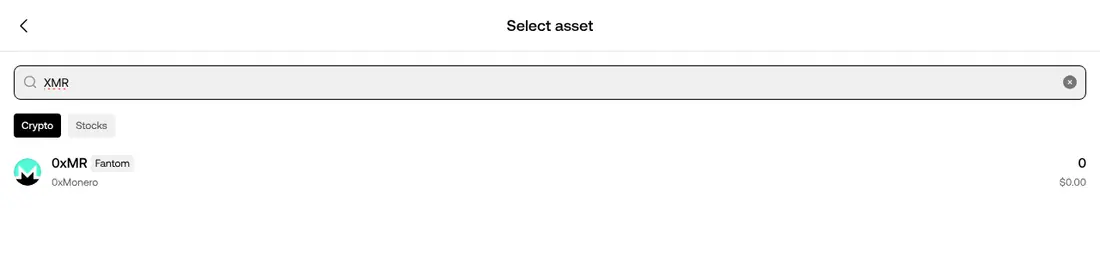
Click Receive and search for the coin. Check the network label under each result: many coins exist as copies on several networks.
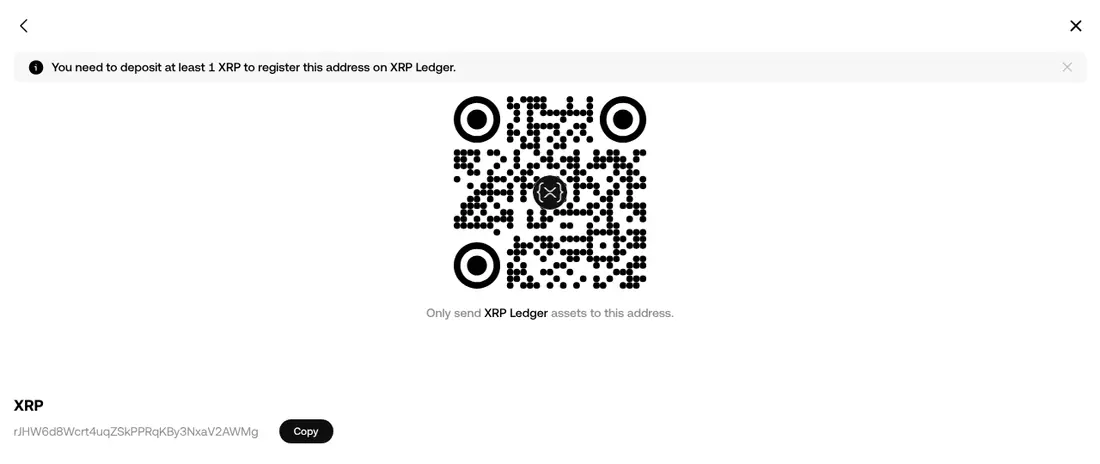
For XRP, choose the result labelled XRP Ledger, not a copy on another network.

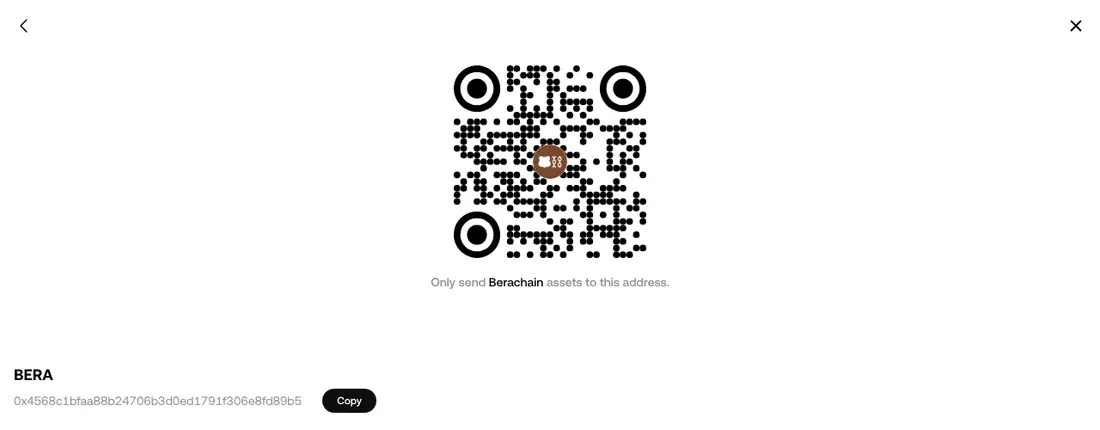
The same works for Berachain (an 0x… address, also usable as your EVM address) and Zcash (a transparent t1… address).
Use it with PayGate.to
| PayGate.to field | OKX Web3 Wallet result to use |
|---|---|
| XRP | XRP · XRP Ledger (r…) |
| EVM wallet (includes Berachain) | Any EVM network, for example ETH or BERA (0x…) |
| Zcash (ZEC) | ZEC · Zcash (t1…) |
| TRC20 (USDT on TRON) | TRX · TRON (T…) |
| Solana | SOL · Solana |
Frequently asked questions
Is OKX Web3 Wallet the same as an OKX exchange account?
No. The Web3 Wallet with a seed phrase is self-custodial: the keys are on your device. An exchange account is custodial. Payouts should go to the self-custodial wallet; see Why you shouldn't use an exchange deposit address.
Why does OKX show several "XRP" or "USDT" results?
Because the same name exists on several networks as separate tokens. Always choose the network that matches your PayGate.to field: XRP Ledger for the XRP field, TRON for TRC20, and so on.
Can I use this wallet as my EVM wallet too?
Yes. Its 0x address is the same on every EVM network it supports. Most people keep one main EVM wallet and use OKX Web3 Wallet only for the extra networks; either way works.